Questions? The manual's assistant answers most of them instantly. Still stuck? Use the support form below — a real person reads and answers every message, usually within 48 hours. No bots.
No. Somos InControl is an independent, unofficial third-party app. It is not affiliated with, endorsed by, or sponsored by Sonos, Inc. It uses the publicly documented local control protocol to talk to Sonos® speakers on your Wi-Fi.
It works with most current and recent Sonos® speakers that support local control on the network. Every room appears in the app — home theater (soundbar) rooms, stereo pairs, and single speakers. If your speaker shows up in the official Sonos® app on the same Wi-Fi, it should show up here too.
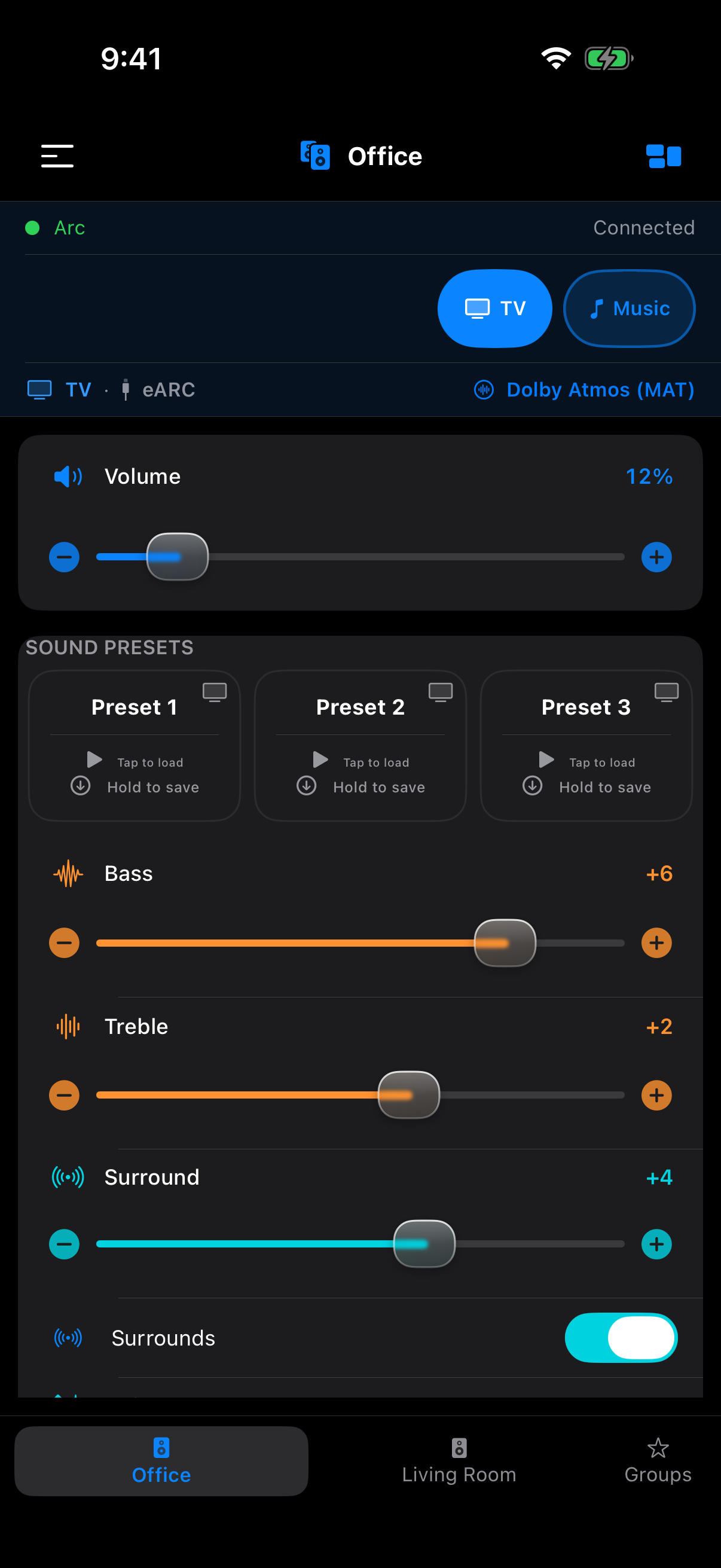
All rooms get volume, bass, treble, loudness, sound presets, Trueplay status, and music. Home-theater-only controls (height, Speech Boost, Night Sound, TV source, and the audio-format badge) appear only in rooms with a soundbar, and a subwoofer slider appears in any room that has a subwoofer bonded.
If a specific model isn't being discovered, let us know through the contact form with the model name and we'll investigate.
No. Somos InControl does not use your Sonos® account and will not ask you to log in. It talks to your speakers directly over Wi-Fi.
iOS requires any app that discovers and talks to devices on your local Wi-Fi to ask for Local Network permission. Somos InControl needs this to find your Sonos® speakers. Without it, the app will have nothing to control. The permission only lets the app see devices on the Wi-Fi you're currently connected to.
No. Somos InControl only works on the same local Wi-Fi as your Sonos® speakers. That's a deliberate design choice — it's what keeps the app fast, private, and account-free. If you're away from home, use the official Sonos® app for remote control.
Dial in the sound you want, then hold a preset to save your current sound into it. Tap a preset to load it, and hold it again to rename it. Presets always capture your EQ levels; tick them when you save and they also keep the volume, Night Sound, Speech Boost and Loudness.
While a preset is active, changing any control it captured deactivates the preset — a toast explains what happened.
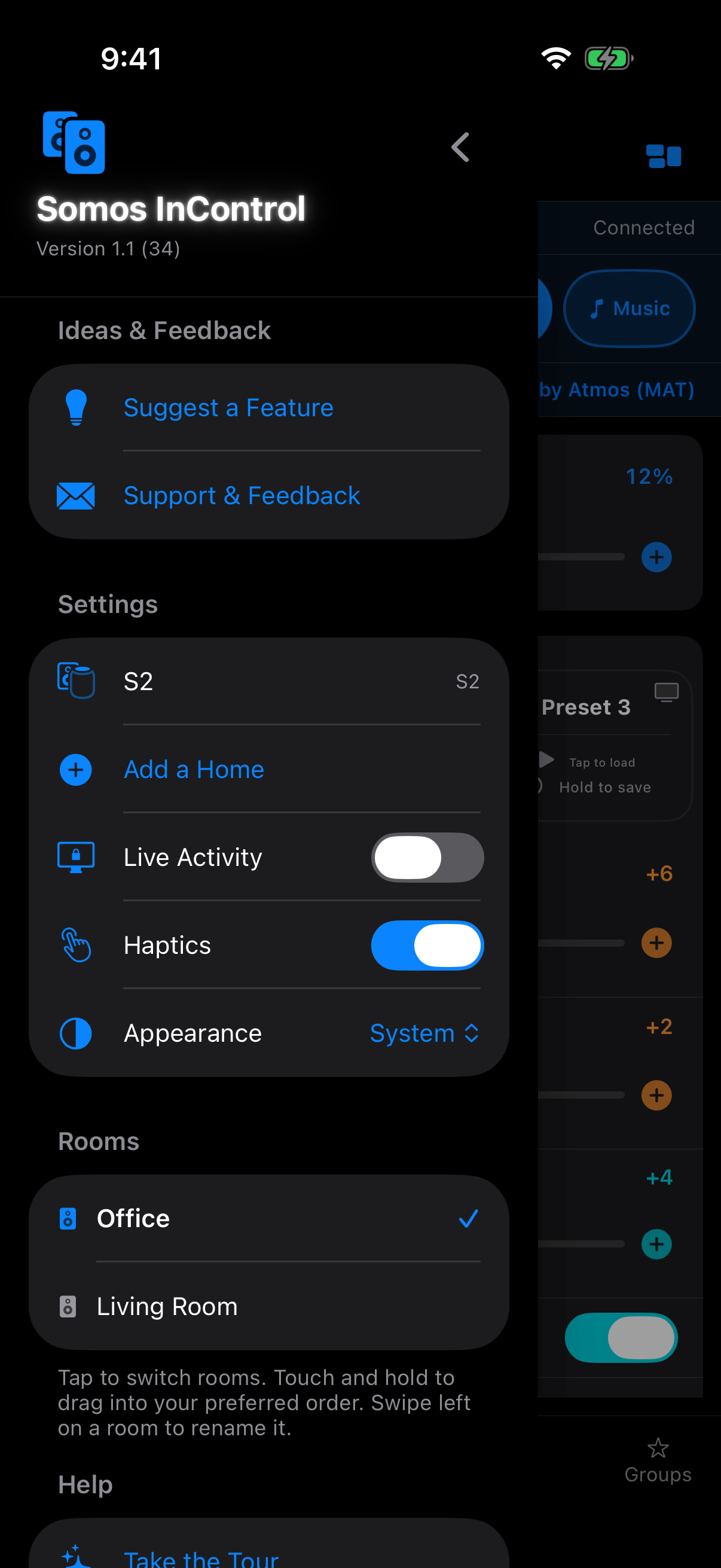
Yes. The bar at the bottom of the screen holds up to 4 favorite rooms — tap a tab to switch. The menu (top-left) lists all of your rooms: tap a room to switch to it, or hold and drag to reorder the list. Whatever sits in the top 4 of the list becomes the bottom tabs.
The Live Activity — the Lock Screen / Dynamic Island card with the room's volume, mute, its three sound presets and the music controls — is off by default. Open the menu, then System settings, and switch on Live Activity. If it still doesn't appear, Live Activities may be turned off for Somos in iOS Settings.
Trueplay is Sonos®'s room calibration feature — it tunes your speaker's sound to match the acoustics of your room. If your speaker supports it, turning it on usually improves sound. Somos InControl shows the current Trueplay status in every room and lets you toggle it.
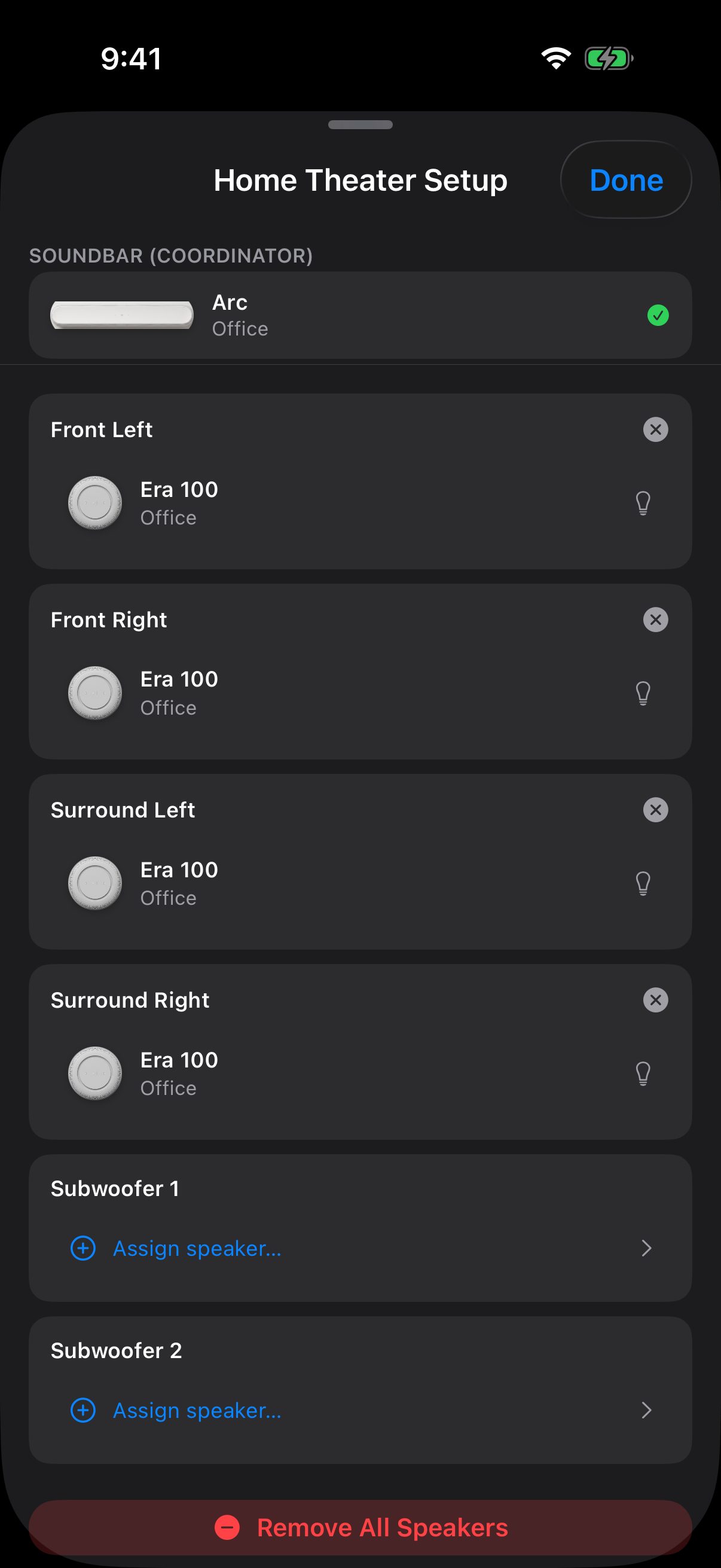
Anytime you make changes in your system that are not a configuration Sonos® officially supports, Trueplay isn't available. Separate front speakers are one of those configurations. That's a Sonos® firmware restriction we've tried hard to work around and can't. The tradeoff is yours to pick: a bigger soundstage with your custom configuration, or your original layout with Trueplay enabled.
No — firmware updates stay with the official Sonos® app. What Somos InControl does do: if one of your speakers is out of sync with the others, it tells you (the speaker appears with a "needs a firmware update" note) so you can update it first and avoid issues with your configurations. If all your speakers match each other, Somos stays quiet — it never nags you to update.
Yes. It's available for special circumstances — the official Sonos® app requires surrounds in pairs, but Somos InControl will bond a single one. If you install it in the left surround spot you'll only get the left surround channel (and vice versa). It likely benefits Era 300 owners most, since that speaker has Atmos capability on its own.
Not from inside the app — Apple doesn't allow third-party apps to start AirPlay to other speakers. But your iPhone already can: AirPlay-capable Sonos® speakers accept AirPlay directly from the iOS AirPlay picker, alongside other AirPlay speakers in the house. So the mix-and-match you're imagining partly exists at the iPhone level.
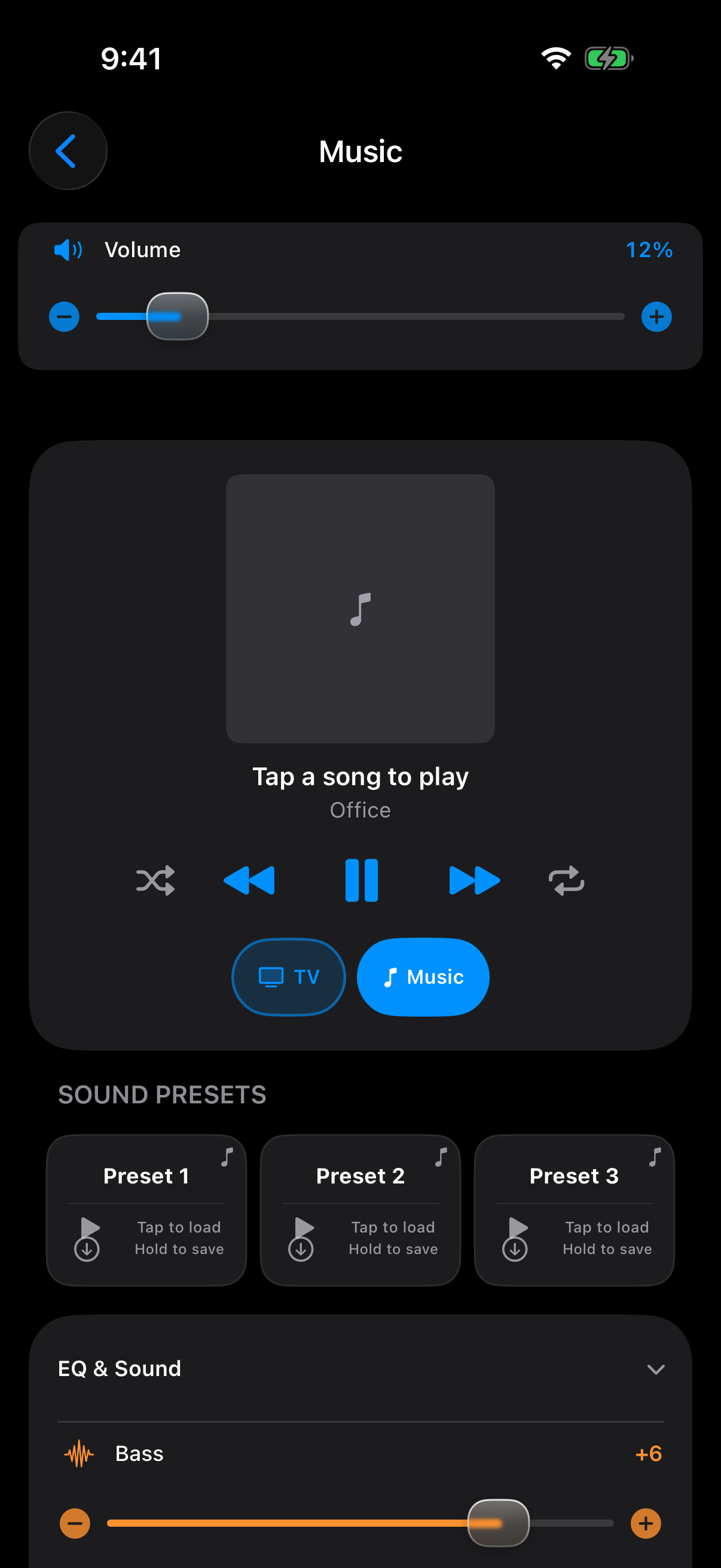
No. Nothing leaves your device on its own except the local control messages your speakers need and a speaker-photo fetch from Sonos®'s public image library. Connecting a music service opens that service's own sign-in page in Safari, inside the app — Apple Music is the exception, and links from the Sonos® app instead. After that, opening the Music sheet at all loads every linked service's front page, so its stored sign-in token goes from your phone straight to that service as soon as the sheet opens — not only when you tap into the service; browsing and playing send more of the same — along with a random per-install device id and your Sonos® household id (on most services the sign-in adds your iPhone model, iOS version and the app's name) — loads its artwork images from the service, and fetches the service's listing and layout file from Sonos®'s servers, with no account details attached. Apple Music's section instead lists your library from the phone itself through Apple's own MusicKit (artwork from Apple's servers). See the Privacy Policy for details.
Somos InControl sends changes directly to the speaker over your local network. If a change doesn't seem to take, check your Wi-Fi signal strength. Brief Wi-Fi drops can cause a command to miss. Try it again once the connection is steady.
Force-quit the app and reopen it. If that doesn't work, restart the device. If it's still crashing, contact us through the form below with your device model and iOS version.
Have a feature idea? Use the dedicated suggestions form so it lands on the right list. For everything else: send us a message and a real person will answer — not a bot. Responses usually take less than 48 hours. You can also get here straight from the app: open the menu and tap Support & Feedback.
Join the Somos community on Reddit →
Your message is delivered directly to the developer. No email address is stored on this page. See our Privacy Policy for how we handle contact data.
 Somos InControl