Before you start — four things Sonos needs
Local Network permission and Bluetooth (optional) are each asked on their own screen right after this one.
When you first open Somos InControl, tap Get started on the welcome screen. You'll walk through one screen at a time — the four things above, then Local Network permission, then Bluetooth — before a last screen's Find My Speakers button starts the search. Tap Allow on the Local Network prompt — this is how the app discovers your Sonos® speakers on your Wi-Fi. Without it, the app has nothing to control.
Once you tap Find My Speakers, the app scans your network and lists every Sonos® room it finds — home theater (soundbar) rooms, stereo pairs, and single speakers alike. Discovery usually takes a couple of seconds.
There is no tour to click through: the short intro video that plays the first time you open the app (on iPhone and iPad) is the only walkthrough, and the documentation is the reference from then on.
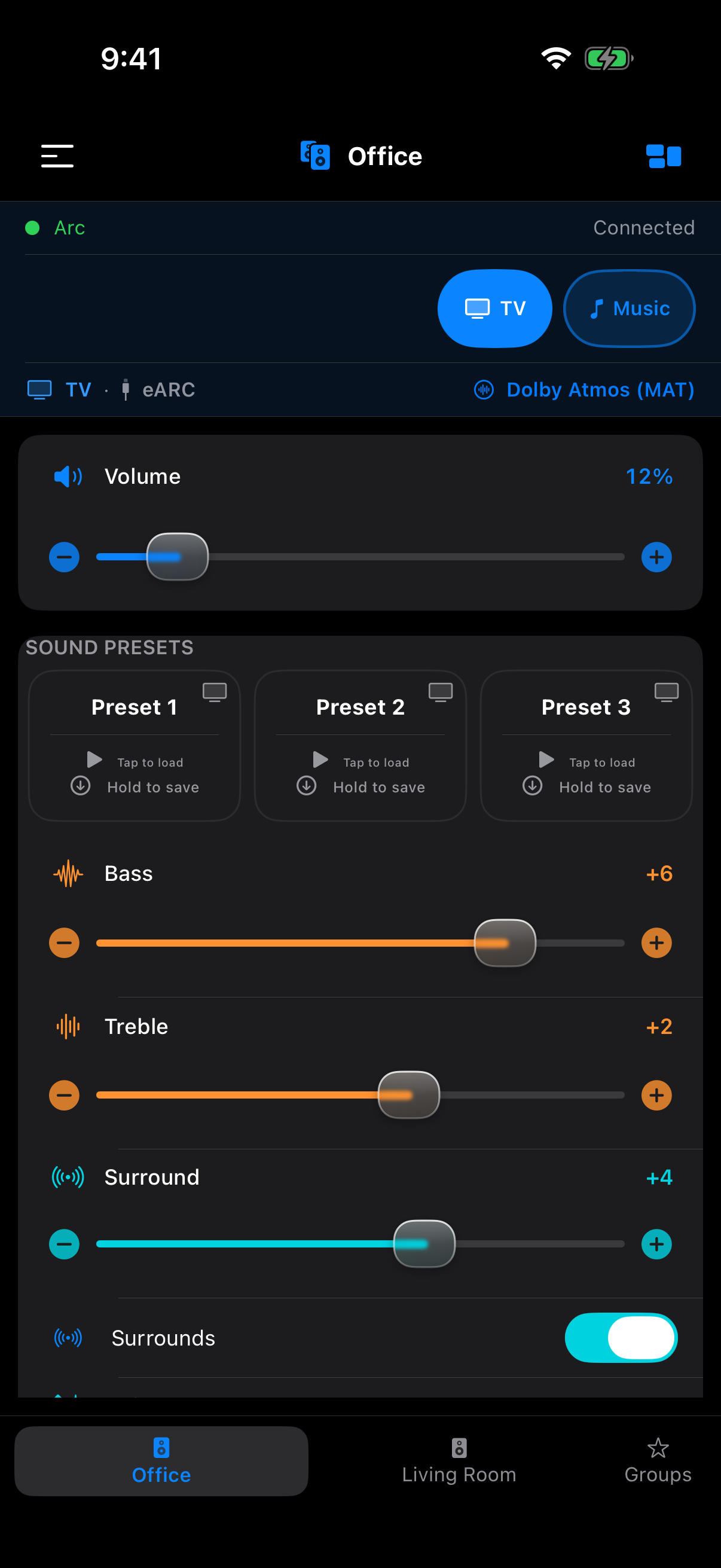
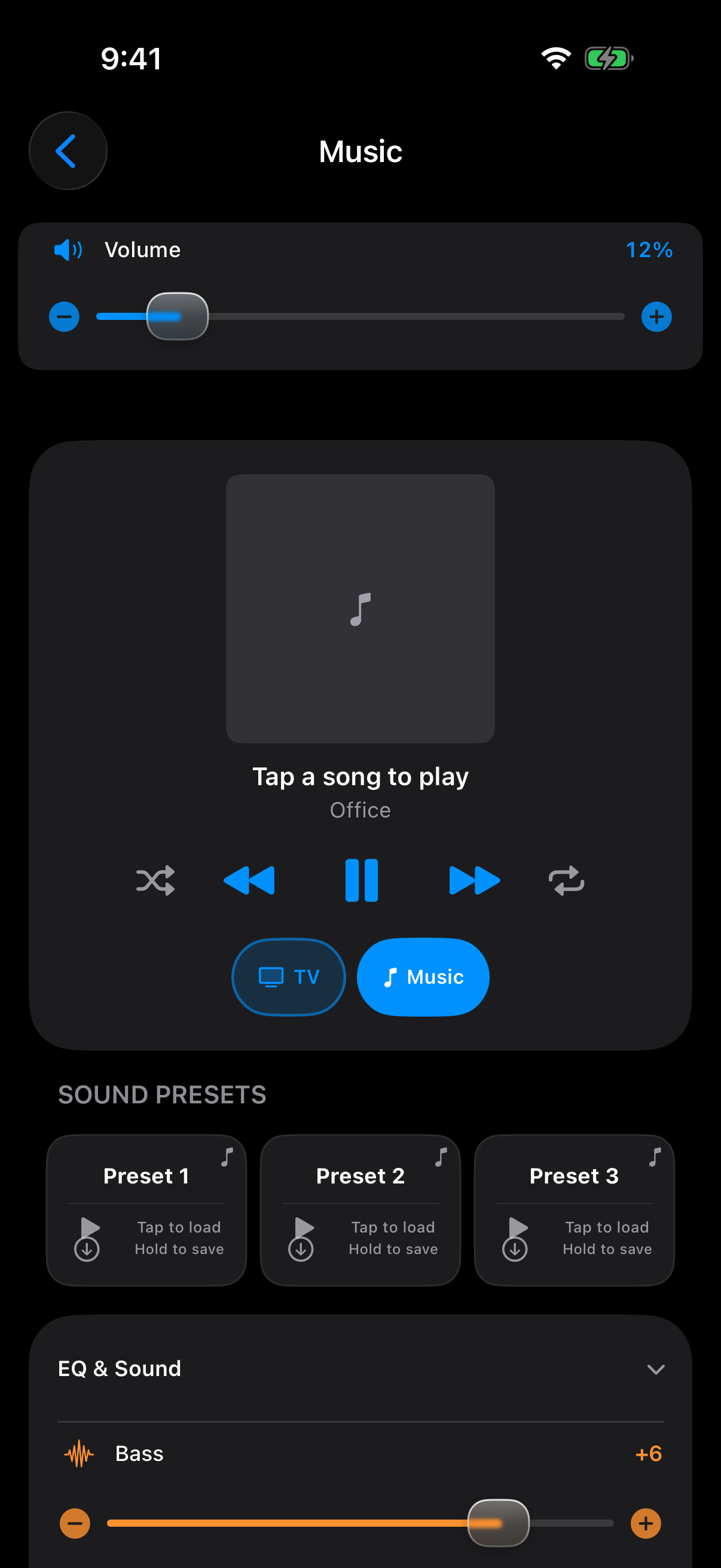
Every Sonos® room in your home appears in the app — home theater rooms with a soundbar, stereo pairs, and single speakers. What you can control depends on what's in the room:
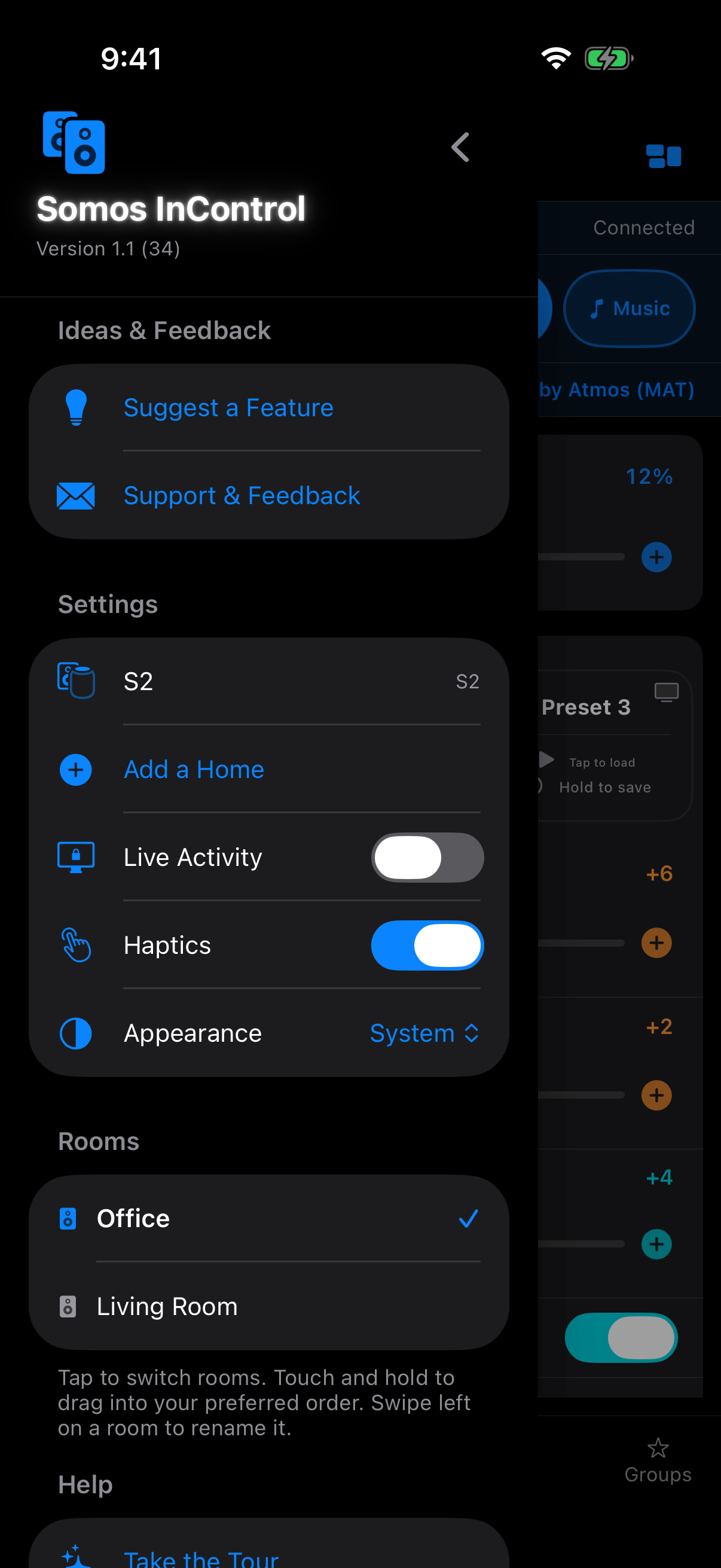
Switching rooms: the bar at the bottom of the screen holds up to 4 favorite rooms as tabs — tap one to switch. The menu lists all of your rooms: tap a room to switch to it, or hold and drag to reorder the list. Whatever sits in the top 4 of the list becomes your bottom tabs.
The Volume card is the big control near the top. Drag the slider left or right to lower or raise the volume in the selected room. Changes apply immediately — no "Apply" button to tap.
If you want to mute the room without changing the slider position, tap the speaker icon next to the slider.
A sound preset is a saved snapshot of how a room sounds. Presets always capture your EQ levels; tick them when you save and they also keep the volume, Night Sound, Speech Boost and Loudness.
While a preset is active, changing any control it captured deactivates the preset — a toast explains what happened, and your manual change stays in effect.
The EQ card gives you direct control of the sound in the selected room — every room, not just soundbars:
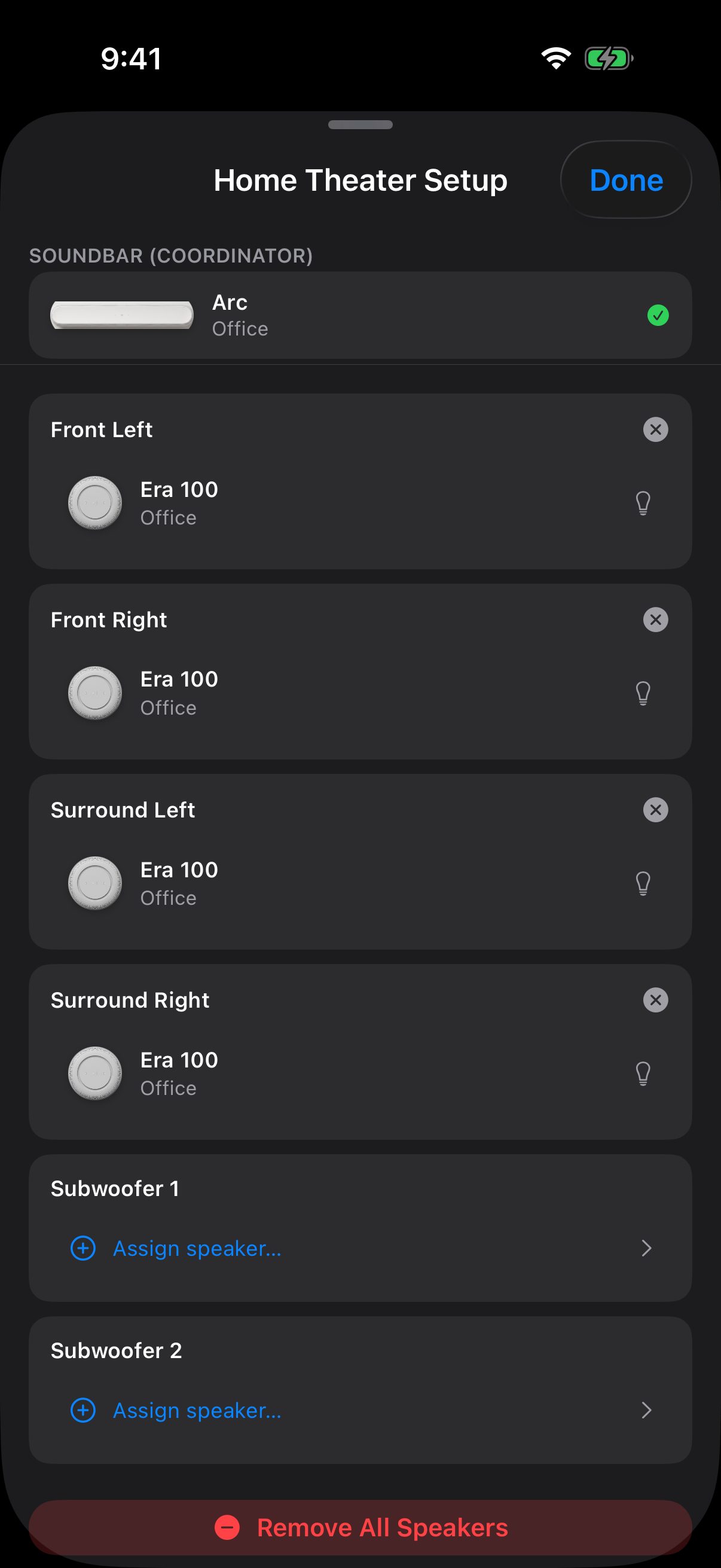
Rooms with a soundbar get an extra set of controls that only make sense for home theater:
These controls appear only in soundbar rooms. In rooms without a soundbar you still get volume, EQ, loudness, presets, Trueplay status, and music.
Each room's diagram shows the real topology of what's playing in it: a stereo pair renders as two speakers (left and right), a single speaker as one, and a bonded subwoofer is shown when the room has one.
Somos InControl can put the current room on your Lock Screen and in the Dynamic Island — volume with −/+ buttons, mute, the room's three sound presets, and play/pause, previous and next when music is playing — so you can adjust the room without opening the app.
Live Activity is off by default. To turn it on, open the menu, then System settings, and switch on Live Activity.
Tap the menu button in the top-left corner. From here you can:
If you have an older Sonos system on S1 and a newer one on S2, Somos shows both. Open the menu and pick the system you want; its rooms appear underneath, and you control each one exactly as you would if it were your only system.
What you cannot do is group an S1 room with an S2 room. Sonos does not allow a group to span two systems — that is their restriction, not something Somos can work around, and the official Sonos apps cannot do it either. Rooms group freely within each system.
So one app, both systems, switch between them whenever you like — just not playing in sync across the two.
 Somos InControl