Somos InControl Get the beta

Coming soon to the App Store. Whole Home: $5.99 — Launch special.

Join the Somos community on Reddit — talk with other Somos users, report bugs, share ideas, and help decide what comes next.

Join on Reddit →
Version 1.1 (39.0.5) · Public beta on TestFlight

A fast, focused remote for your Sonos® speakers.

Somos InControl gives you one page per room — instant volume, real EQ, sound presets, home theater setup and music — over your local Wi-Fi, with no account, and no cloud for control. It's built for people who want to adjust the sound and get back to whatever they were doing.
iPhone and iPad · iOS 17 or later · Independent, not affiliated with Sonos, Inc.

Free to download. Whole Home is a one-time in-app upgrade — no subscription, and shared with your family through Family Sharing.

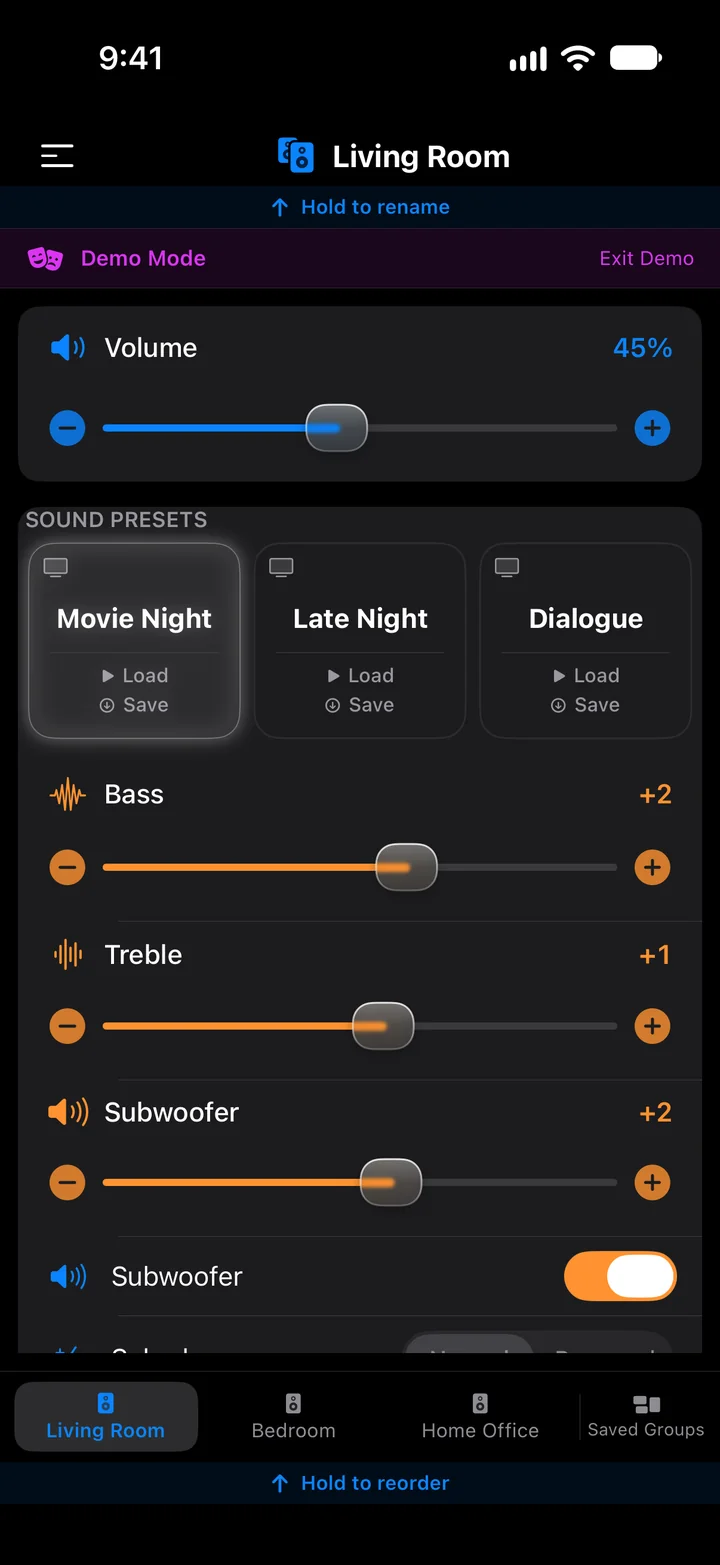
The Living Room page in dark mode: volume 45%, the Movie Night, Late Night and Dialogue presets, and Bass, Treble and Subwoofer sliders
  1. Install from TestFlightYou'll need Apple's free TestFlight app first. Then tap the link above and install Somos InControl.
  2. Tap Get startedOne screen each for Local Network and Bluetooth, then Find My Speakers. Allow Local Network — it's the only way the app can see your Sonos® speakers. Why it's needed.
  3. Pick a roomThe app scans your network and opens your first room. Everything applies instantly.

What people are saying

Written about, unprompted

And from the people using it

See it in action

A minute in the app — the room page, presets, the room map, Home Theater Setup and Music — plus iPad and Apple Watch.

A tour of the app

Real screenshots from the current beta in Demo Mode and dark mode, with what each screen does. Every item links to its page in the guide.

The Living Room page in dark mode: a Demo Mode banner, a Volume slider at 45%, three sound presets named Movie Night, Late Night and Dialogue with Movie Night lit, Bass +2, Treble +1 and Subwoofer +2 sliders with a Subwoofer switch, and the Living Room, Bedroom, Home Office and Saved Groups tabs at the bottom.

The room page

Each room gets one page. Everything you touch applies to the speaker as you touch it, and the page follows the app's light or dark appearance — this is dark mode, on the Demo Mode room the app lets you explore before it has found your speakers.
  • A large volume slider pinned at the top, with − / + and mute
  • Three TV presets on a soundbar room: hold to save, tap to load — the loaded one is lit
  • Bass, treble and, on this room, a Subwoofer level and on/off switch
  • Your four favorite rooms in the bottom bar — hold a tab to reorder them — with saved groups on its second page
Anatomy of a room page
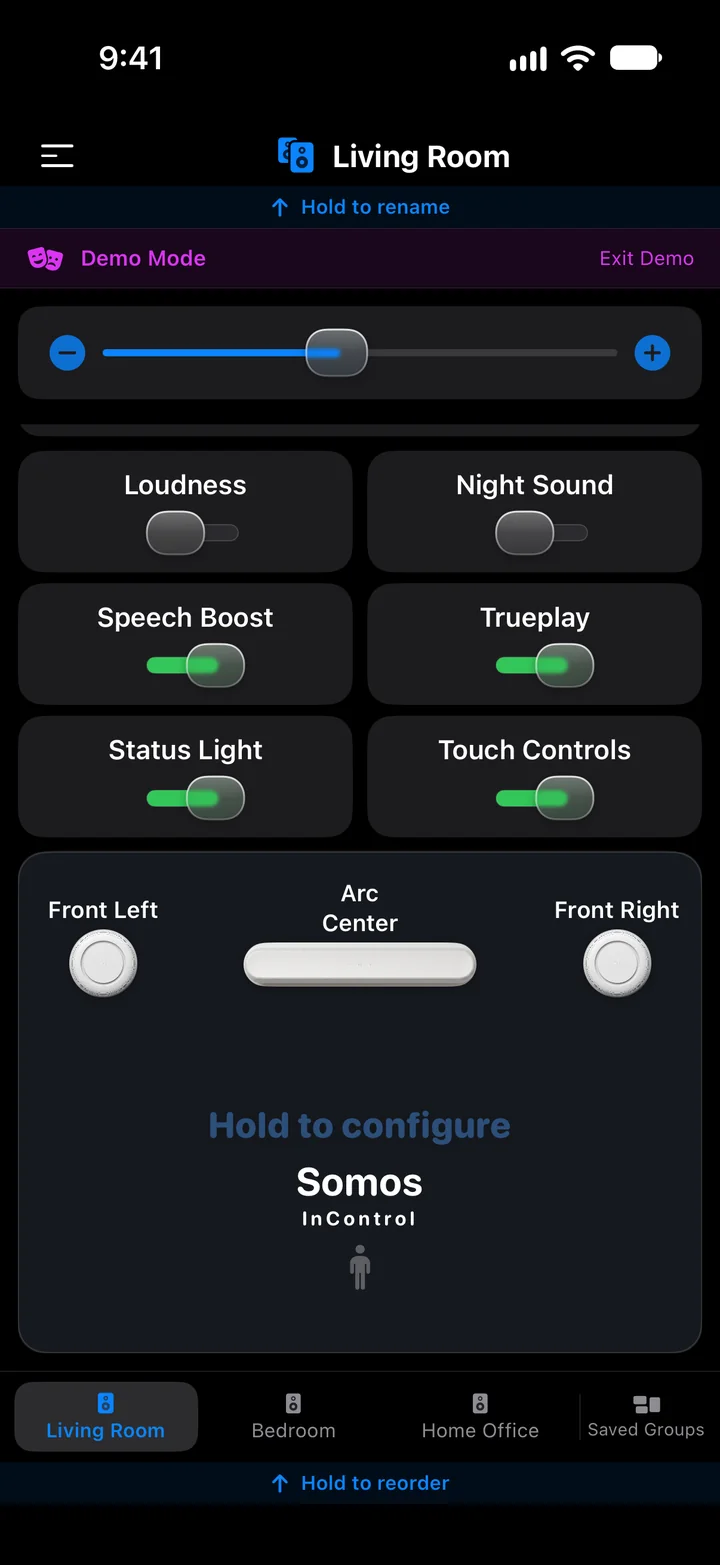
The bottom of the Living Room page: Loudness, Night Sound, Speech Boost, Trueplay, Status Light and Touch Controls switches, then the room map card with Front Left, an Arc in the centre and Front Right, reading Hold to configure.

The room map

Below the sound switches sits a drawing of the room: the soundbar in the centre and every speaker bonded to it, in the place it plays from. Here an Arc with a separate front left and front right.
  • Loudness, Night Sound, Speech Boost, Trueplay, Status Light and Touch Controls, each a single switch
  • Hold the map to open Home Theater Setup
The room diagram
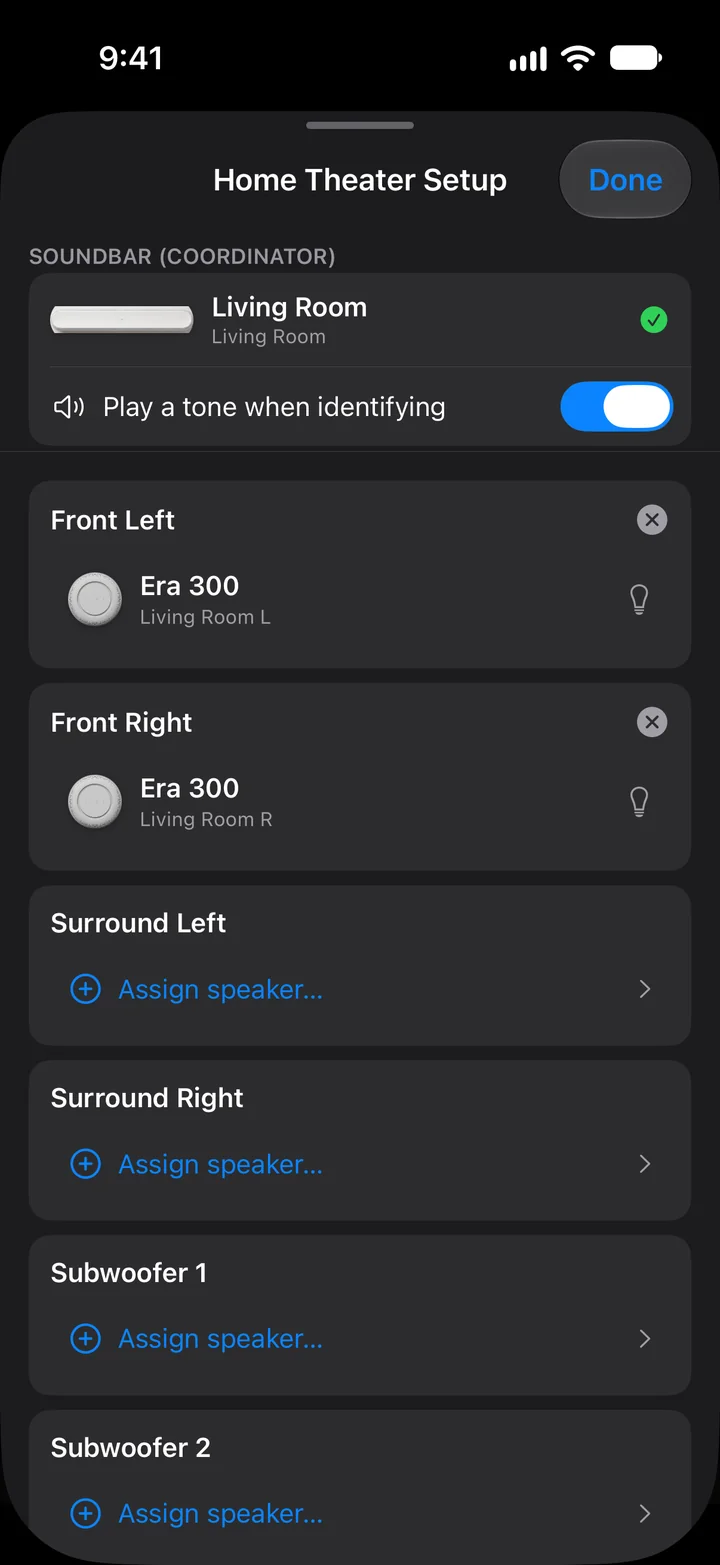
The Home Theater Setup sheet in dark mode: an Arc listed as the soundbar coordinator for Living Room, a Play a tone when identifying switch, Era 300 speakers assigned to Front Left and Front Right, and Assign speaker rows for Surround Left, Surround Right, Subwoofer 1 and Subwoofer 2.

Home Theater Setup

Press and hold the room map on a soundbar's page to open this sheet. Assign speakers to Front Left, Front Right, Surround Left, Surround Right, Subwoofer and Subwoofer 2 — including separate front speakers, which the official app doesn't offer.
  • Up to two Subs, including two older-generation Subs
  • Each assigned speaker has a bulb to flash its light and an × to remove it; the tone switch plays a sound on the speaker being identified
  • Stereo pairs can be created and separated the same way
Speaker setup guide
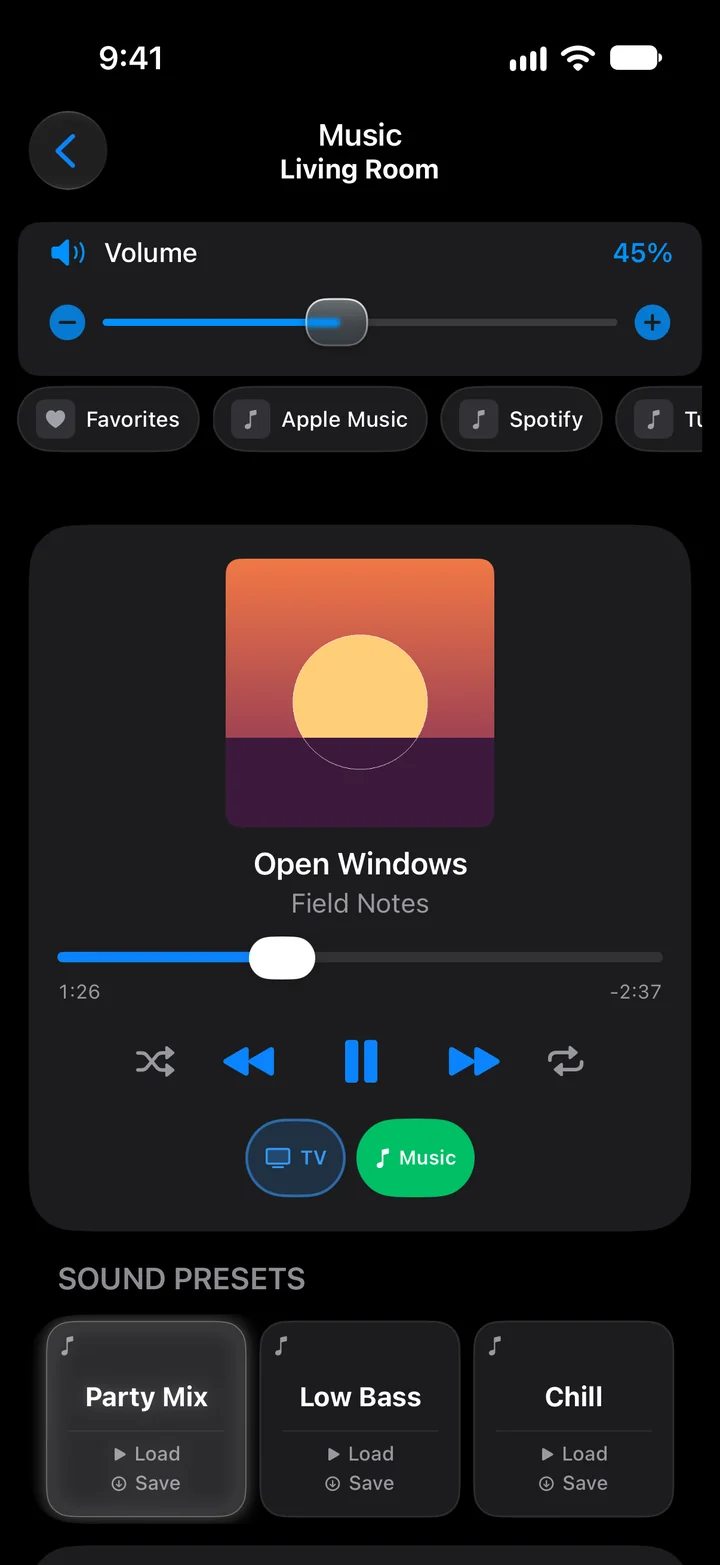
The Music page in dark mode: Music and Living Room in the title, a Volume slider at 45%, a strip of pills reading Favorites, Apple Music, Spotify and TuneIn, a player card with an orange sunset album cover, Open Windows by Field Notes, a progress bar at 1:25, shuffle, previous, pause, next and repeat, TV and Music buttons with Music lit, and three music presets named Party Mix, Low Bass and Chill with Party Mix lit.

The Music page

Tap Music in the source row to open it. Your music services sit in a strip under the volume — tap one to browse it — and the player card shows what the speaker is playing. The speaker streams straight from the service; your phone is only the remote.
  • Favorites, then one pill per linked service
  • Album art, title and artist, a scrubber, and previous, play/pause, next, shuffle and repeat
  • Three music presets, separate from the room page's TV presets
  • A TV switch to send a soundbar straight back to the TV input
Music guide
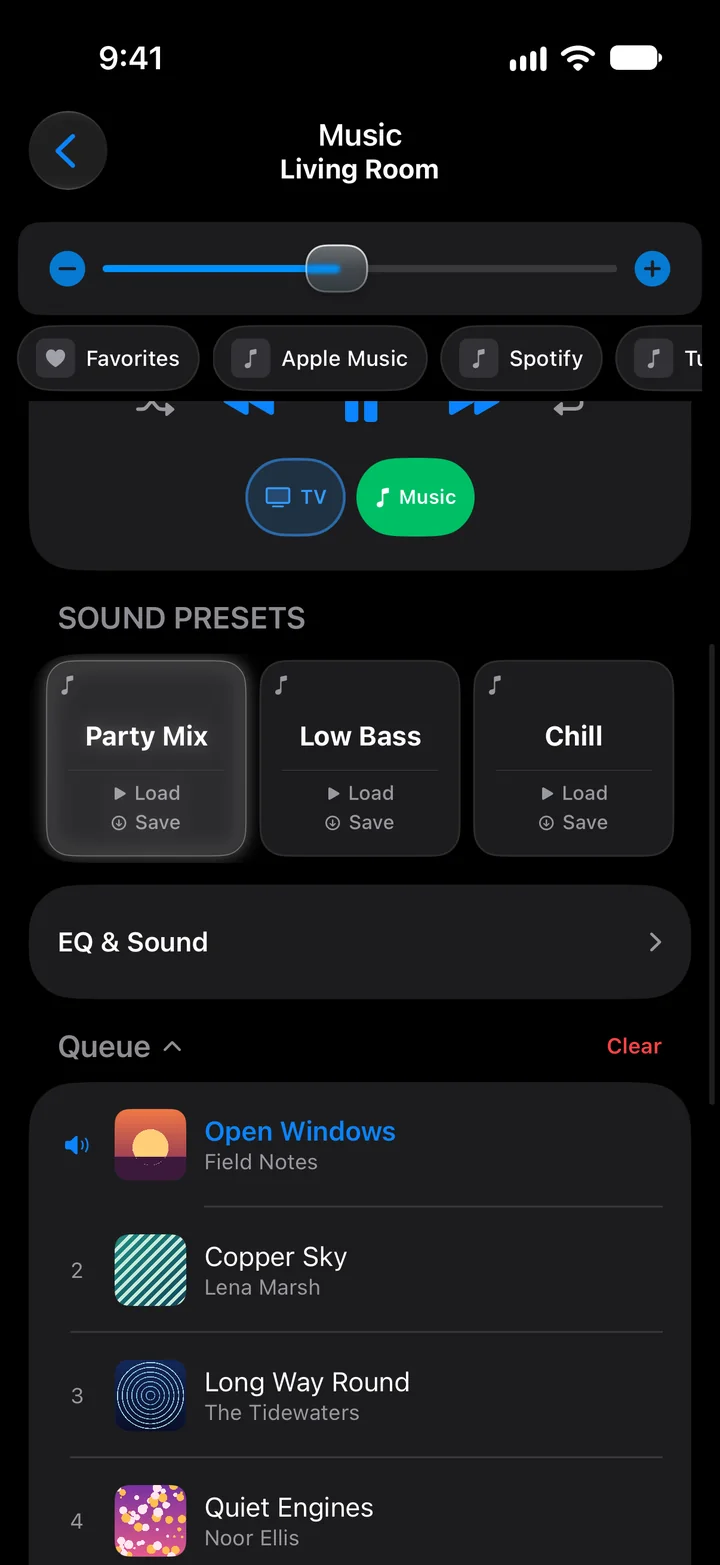
The Music page scrolled down in dark mode: TV and Music buttons, the Party Mix, Low Bass and Chill presets with Party Mix lit, a collapsed EQ and Sound row, then a Queue header with Clear and the first four songs, Open Windows by Field Notes marked as playing, Copper Sky by Lena Marsh, Long Way Round by The Tidewaters and Quiet Engines by Noor Ellis, each with its own cover.

Presets, EQ and the queue

Scroll the Music page and the rest follows: the music presets, a collapsible EQ & Sound card, and the queue with a cover for every song and the playing one marked.
  • Three music presets: hold to save, tap to load
  • EQ & Sound opens to bass, treble, sub, Music Level, Loudness and Full / Ambient
  • The queue, numbered, with Clear at its head
Sound presets
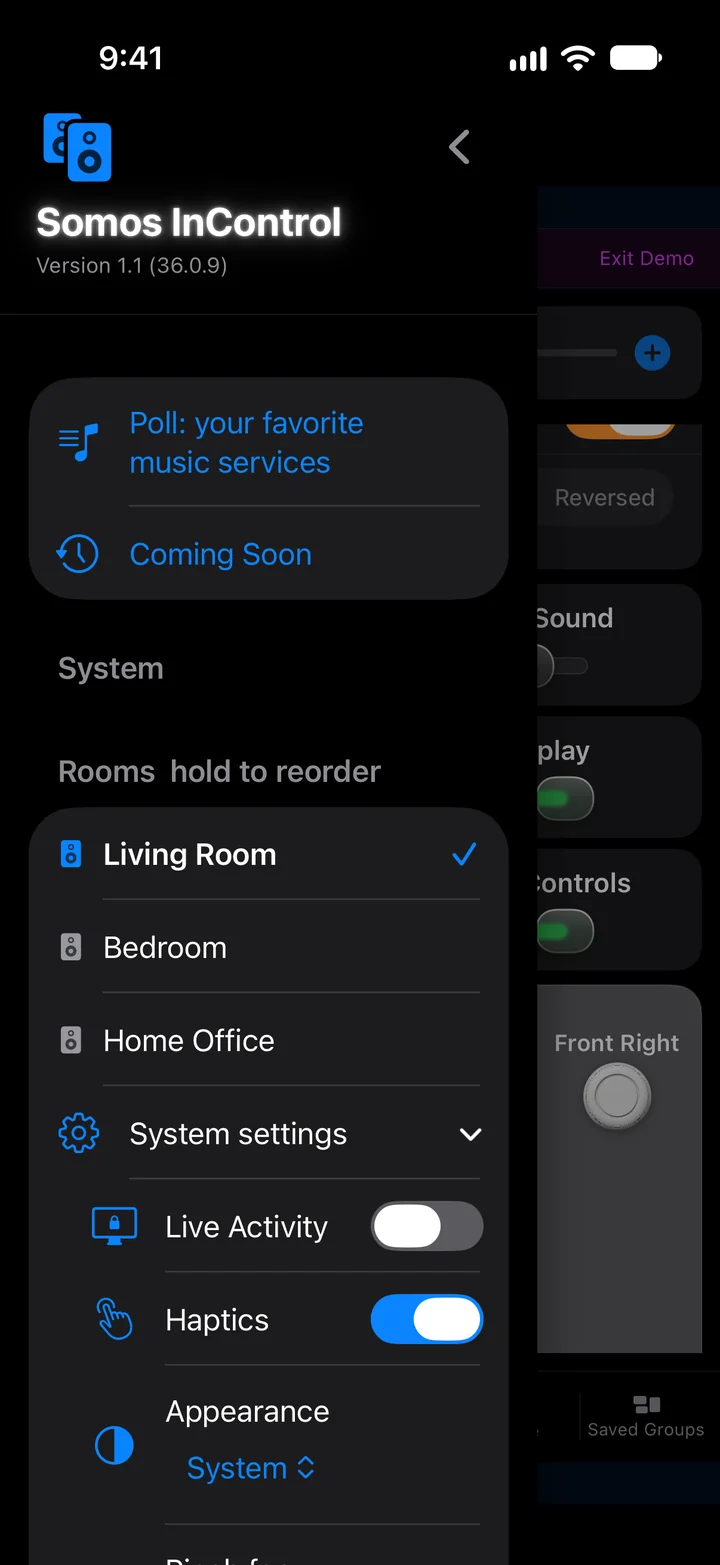
The app menu sliding over a room page in dark mode: the Somos InControl name and version, Poll: your favorite music services, Coming Soon, a System heading, Rooms with Living Room ticked, Bedroom and Home Office, and System settings expanded to show Live Activity off, Haptics on and Appearance set to System.

The menu

Everything that isn't a sound control lives here, top-left of every room.

  • Your rooms — tap to switch, hold to reorder
  • System settings opens in place: Live Activity puts volume, mute, your three sound presets and music transport on your Lock Screen and in the Dynamic Island; Haptics; Appearance
  • The System heading: the S1 / S2 switcher, for households with both
  • iCloud sync — your presets, room order, saved groups, favourites and playlists follow your Apple ID to your other devices and come back after a reinstall
  • Further down, Help & Support: Settings Somos needs, Getting Started, the Feature Reference, and the rows that reach the developer directly
The menu, section by section

On iPad

The same app, with the room to breathe: on an iPad Pro 11-inch the whole room page fits on one screen. Demo Mode, dark mode, from the current beta.
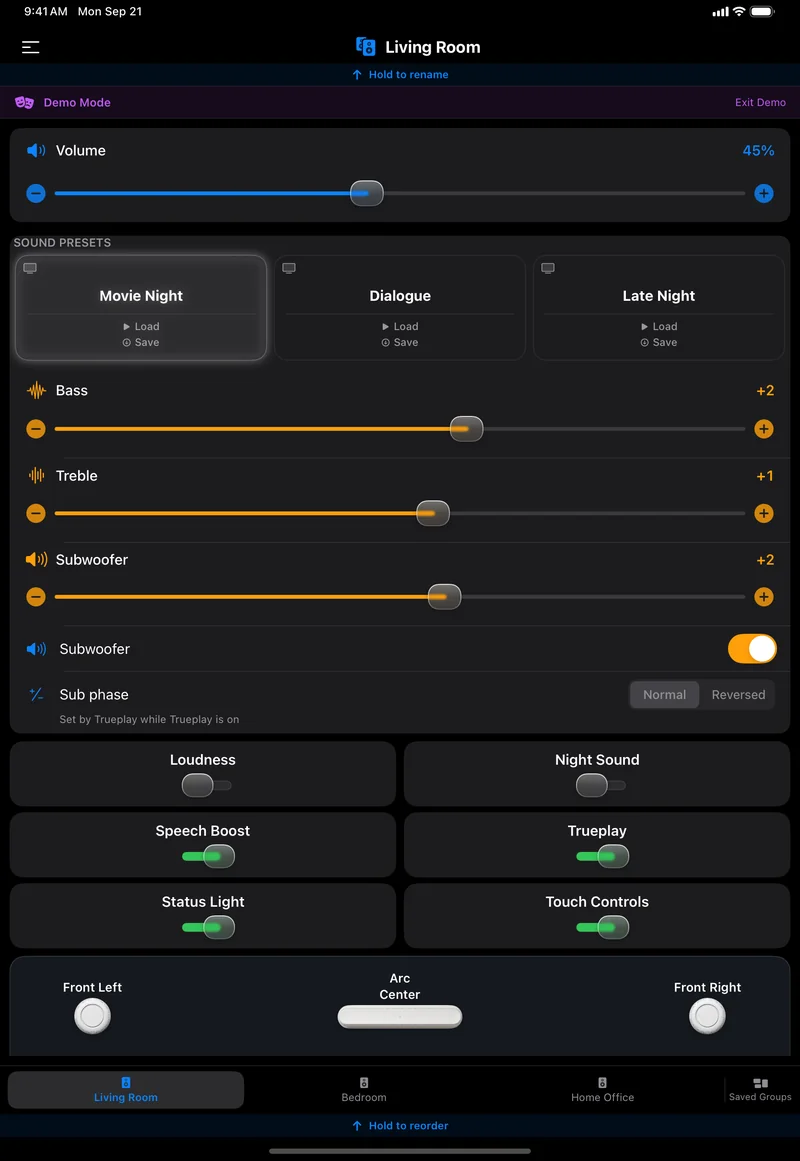
The Living Room page on an iPad in dark mode, all on one screen: Demo Mode banner, Volume 45%, Movie Night, Dialogue and Late Night presets with Movie Night lit, Bass, Treble and Subwoofer sliders, a Subwoofer switch, Sub phase Normal or Reversed, six switches for Loudness, Night Sound, Speech Boost, Trueplay, Status Light and Touch Controls, the room map with Front Left, Arc Center and Front Right, and the four room tabs.

The room page

Volume, presets, every slider, every switch and the room map, without scrolling. The presets spread into three wide cards and the switches into two columns.
  • Volume, Bass, Treble and Subwoofer sliders with − / + at both ends
  • Sub phase, Normal or Reversed, set by Trueplay while Trueplay is on
  • The room map at the bottom — hold it for Home Theater Setup
Anatomy of a room page
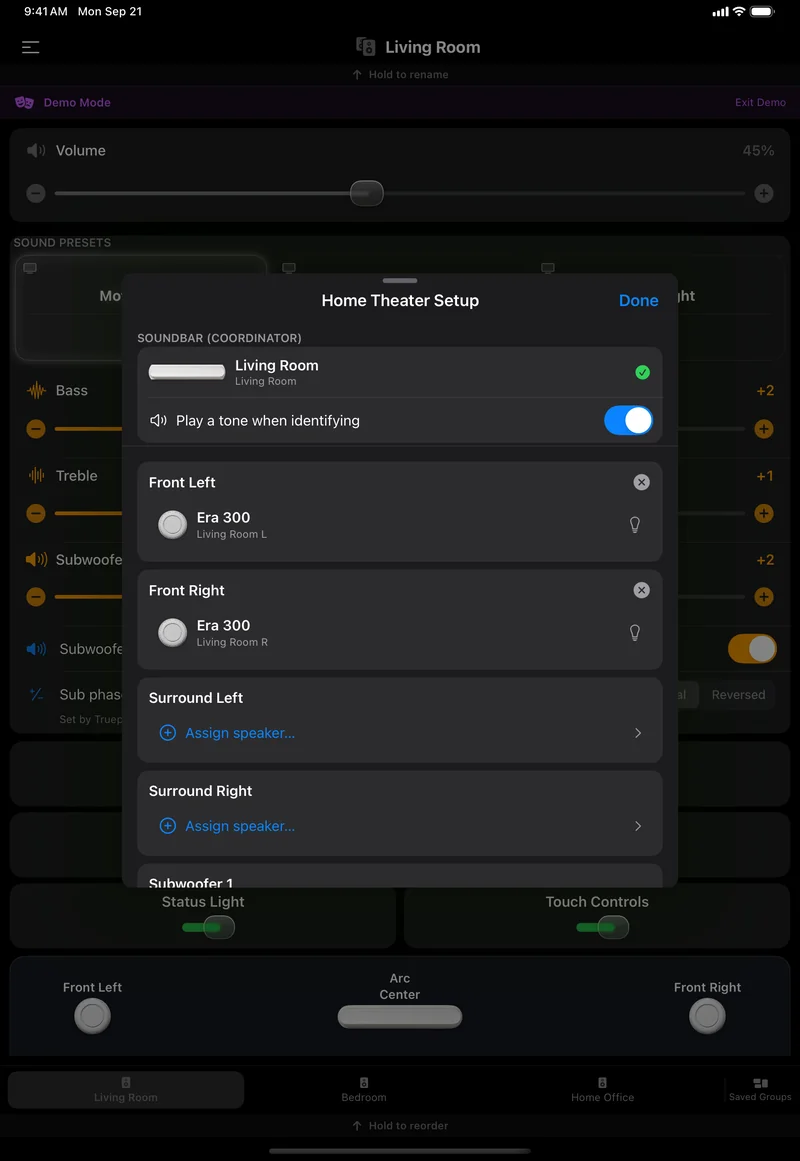
The Home Theater Setup sheet centred over the Living Room page on an iPad: Living Room as the soundbar coordinator, Play a tone when identifying on, Era 300 in Front Left and Front Right with bulb and remove buttons, and Assign speaker rows for Surround Left, Surround Right and Subwoofer 1.

Home Theater Setup

The sheet floats in the middle of the page instead of covering it, so the room stays visible behind it while you assign speakers.
  • The soundbar as coordinator, then a card per position
  • Bulb to flash a speaker's light, × to remove it, Assign speaker… to fill an empty slot
Speaker setup guide
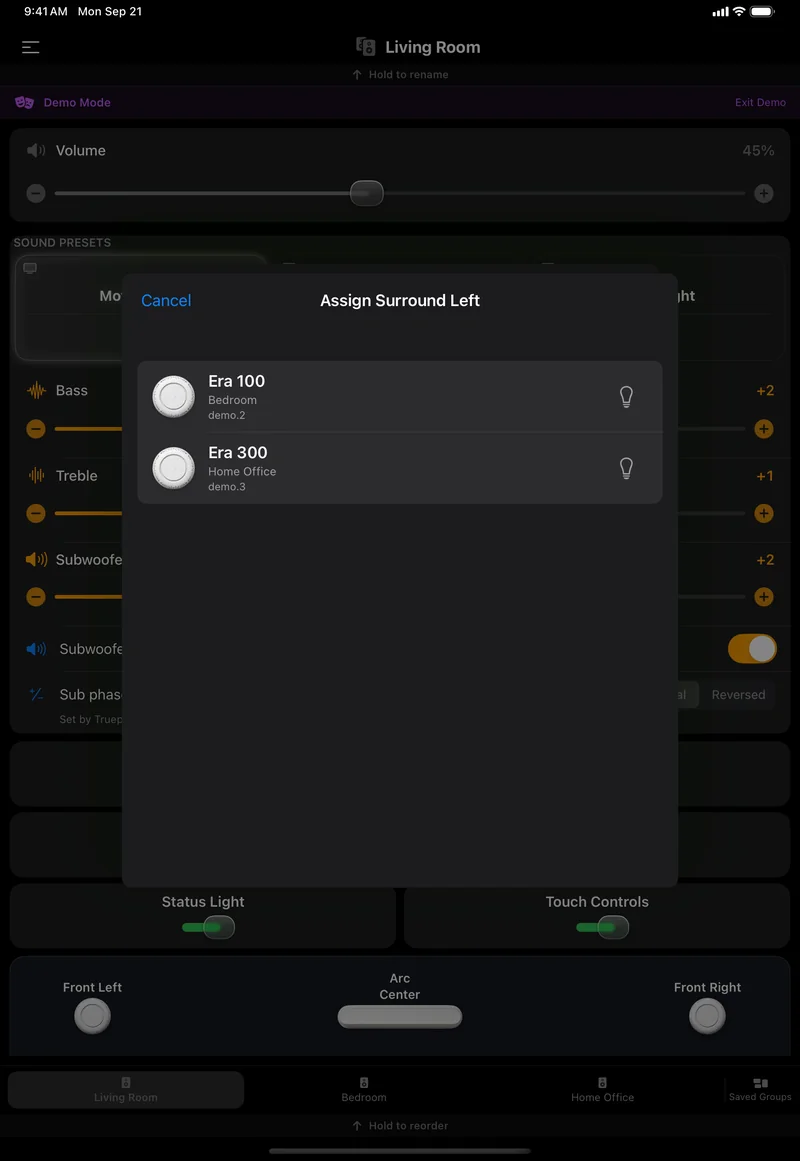
The Assign Surround Left picker on an iPad: two rows, Era 100 in Bedroom and Era 300 in Home Office, each with a bulb button, and Cancel.

Picking a speaker

Tap Assign speaker… and every speaker in the house that could take the slot is listed with its room. Tap the bulb to flash the one you mean before you commit.
  • Cancel leaves the slot empty
Speaker setup guide
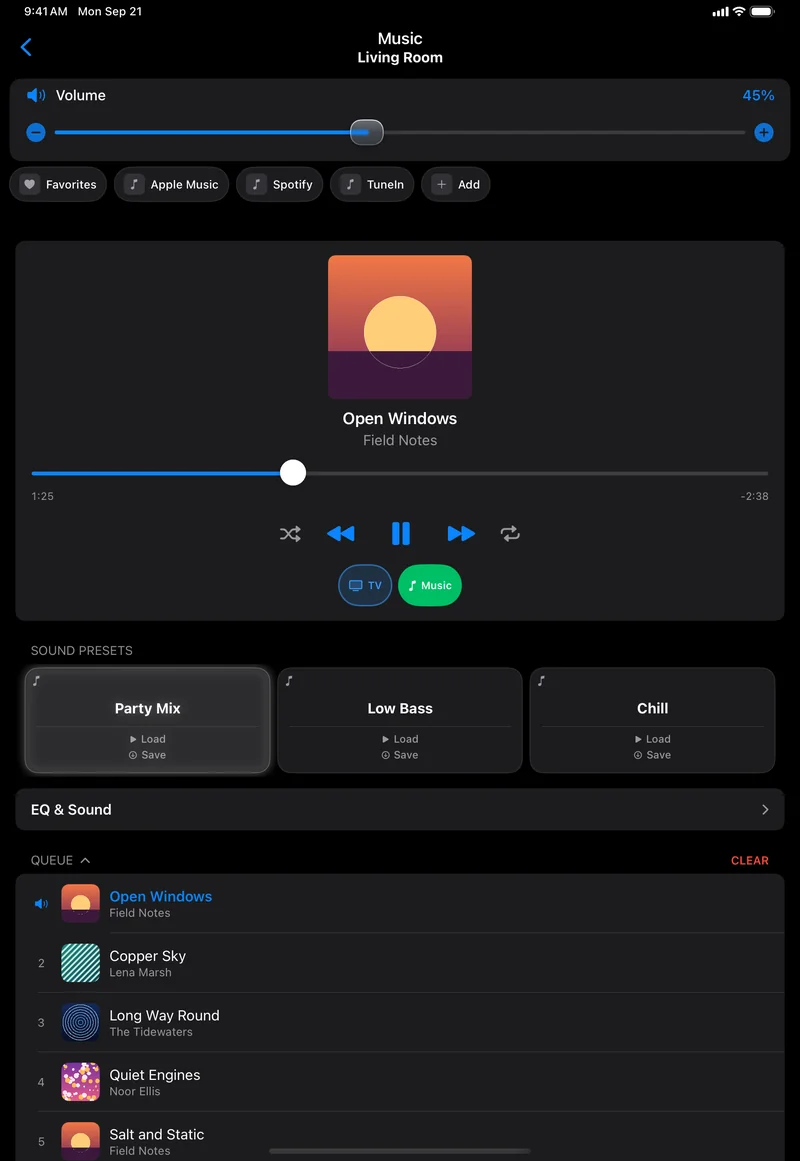
The Music page on an iPad in dark mode: Volume 45%, a strip reading Favorites, Apple Music, Spotify, TuneIn and Add, a player card with an orange sunset cover, Open Windows by Field Notes, a progress bar at 1:25 of 2:38 remaining, transport buttons, TV and Music with Music lit, Party Mix, Low Bass and Chill presets with Party Mix lit, an EQ and Sound row, and a Queue whose first five songs each carry a cover.

The Music page

The services strip, the player, the music presets and the queue on one screen, each song in the queue with its cover.
  • Favorites and one pill per linked service — Apple Music, Spotify and TuneIn here — then Add
  • The current song is marked in the queue and its cover fills the player
  • Party Mix, Low Bass and Chill: music presets, separate from the TV ones
Music guide
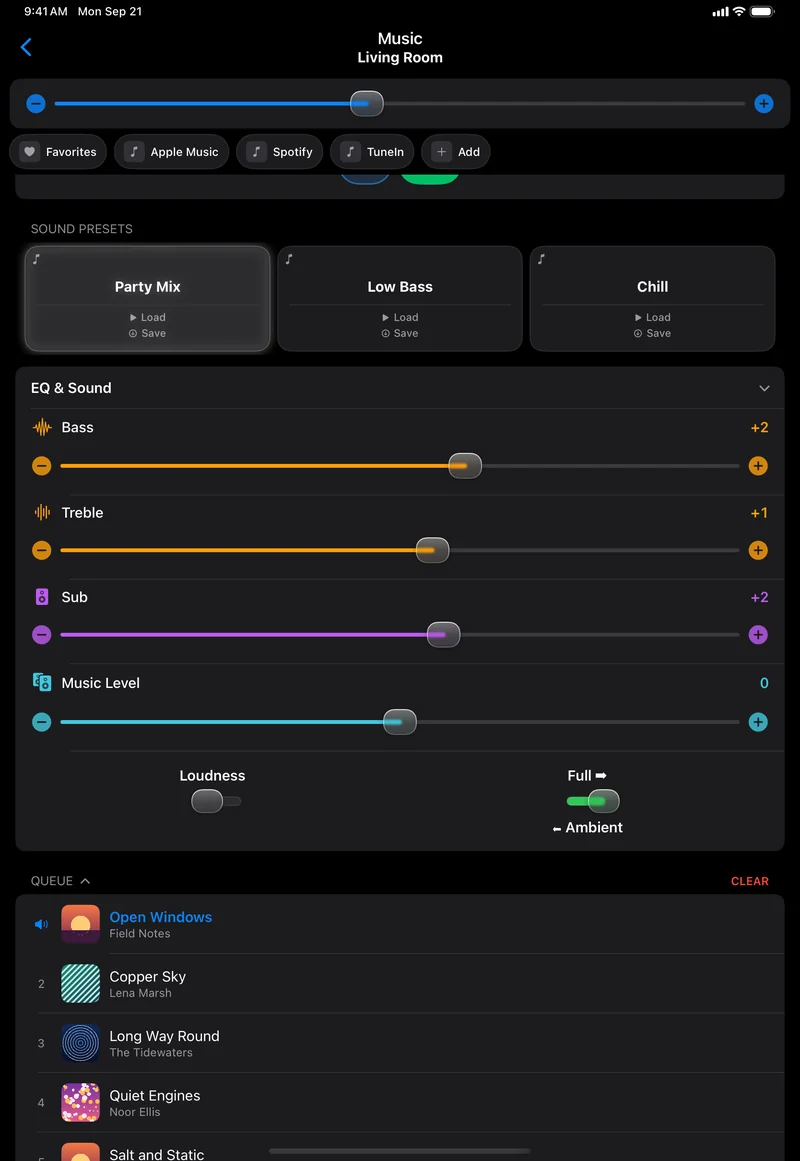
The Music page on an iPad scrolled to the EQ and Sound card, open: Bass +2, Treble +1 and Sub +2 sliders, Music Level 0, a Loudness switch off and a Full or Ambient switch set to Full, with the queue below.

EQ & Sound

Open the card and the music EQ unfolds under the presets: the same bass and treble as the room page, plus the controls that only matter for music.
  • Bass, Treble and Sub level
  • Music Level for the surrounds, and Full ⇄ Ambient for how much of the music they carry
  • Loudness as a switch
EQ and Trueplay
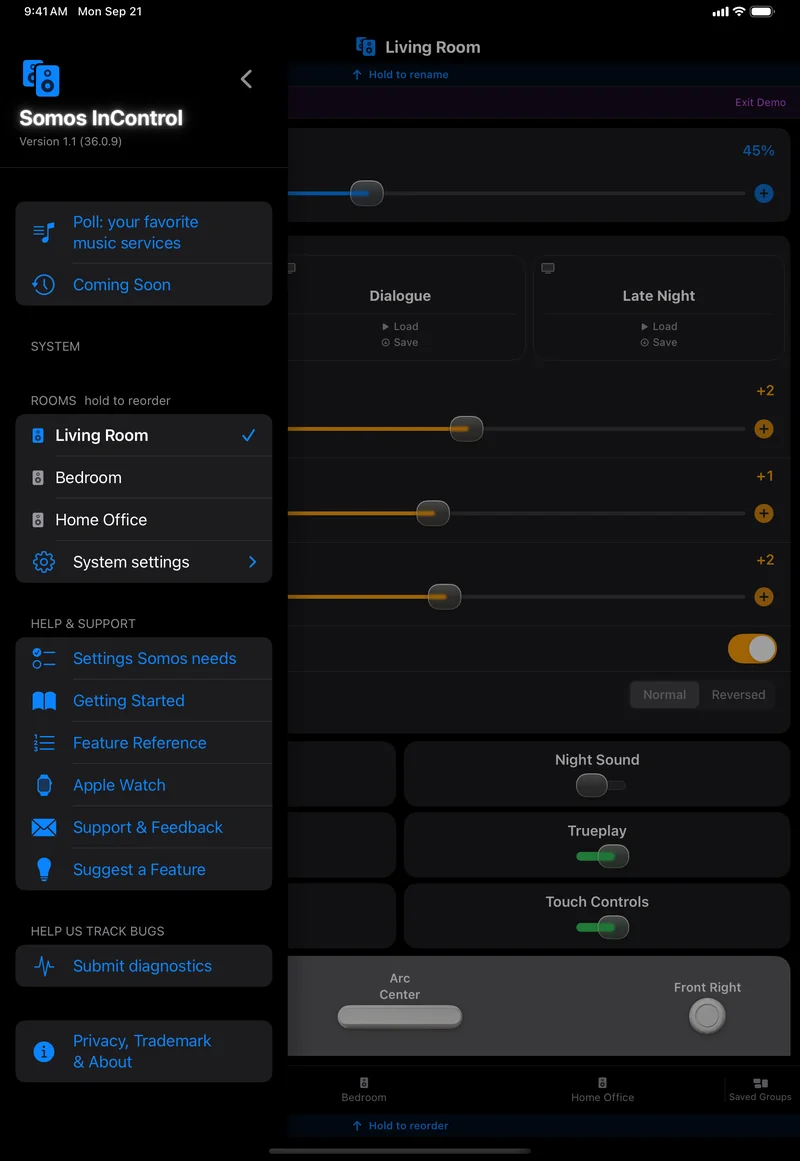
The side menu open over the Living Room page on an iPad in dark mode: Somos InControl and its version, Poll: your favorite music services, Coming Soon, System, Rooms with Living Room ticked, Bedroom, Home Office and System settings, Help and Support with Settings Somos needs, Getting Started, Feature Reference, Apple Watch, Support and Feedback and Suggest a Feature, Submit diagnostics, and Privacy, Trademark and About.

The menu

On the iPad the menu slides over the left third of the page, so the room stays in view. The whole list fits without scrolling.
  • Rooms and System settings at the top
  • Help & Support: the in-app guides, the Apple Watch guide, Support & Feedback and Suggest a Feature
  • Submit diagnostics, and Privacy, Trademark & About
The menu, section by section
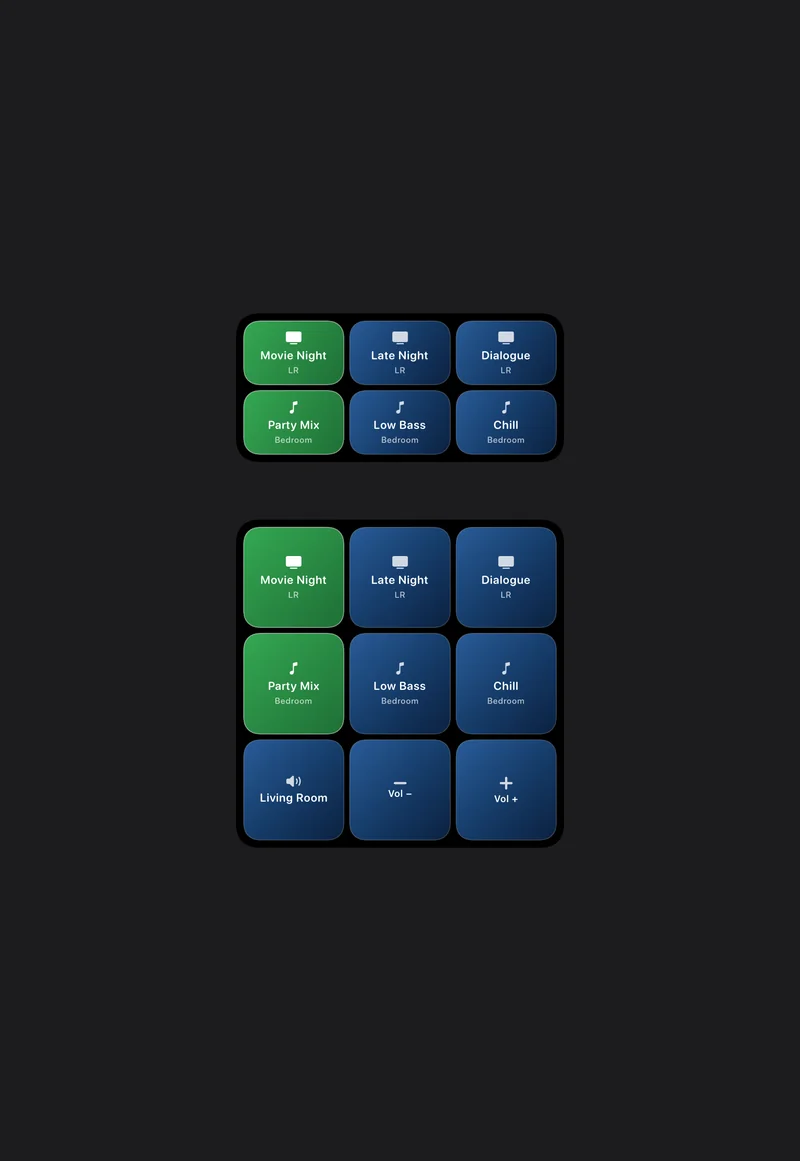
The Somos widgets in dark mode on a plain dark background: the medium widget with six preset buttons, Movie Night, Late Night and Dialogue for LR and Party Mix, Low Bass and Chill for Bedroom, the loaded ones green; and the large widget with the same six presets plus a Living Room row with Vol − and Vol + buttons.

The widgets

The Home Screen widgets, shown here at iPad size on a plain background: the medium widget carries two rooms' presets, the large one adds a volume row for a room. Each button loads that preset.

  • Row one: a room's three TV presets; row two: another room's three music presets
  • The loaded preset is lit green
  • Large only: the room name, Vol − and Vol +
Widget and Siri

On Apple Watch

Somos InControl installs a small Apple Watch app alongside the iPhone app. Real screenshots of the Watch app and two watch faces, with demo rooms and made-up songs; the Smart Stack frame is the app's card drawn on a plain background.
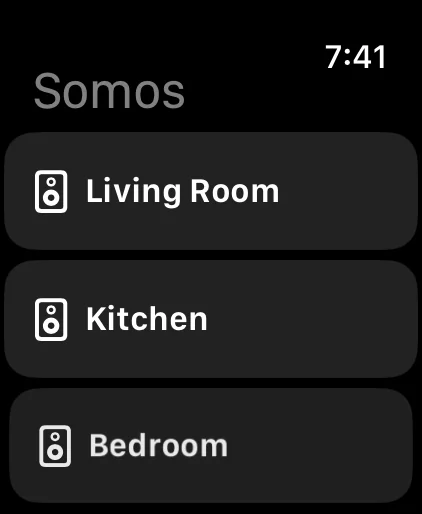
The Somos Apple Watch app's first screen: a list titled Somos with the rooms Living Room, Kitchen and Bedroom.
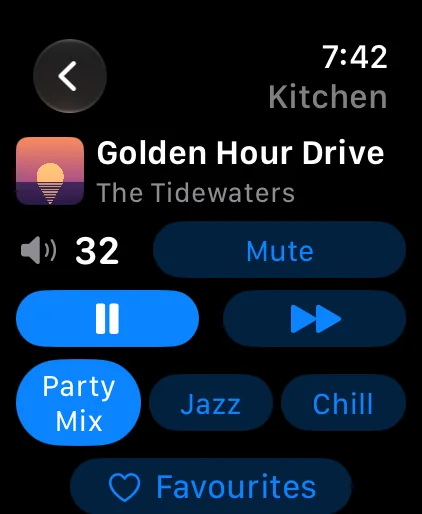
A music room on the Apple Watch: Kitchen, an orange sunset album cover with Golden Hour Drive by The Tidewaters, volume 32 with a Mute button, pause and next, three presets Party Mix, Jazz and Chill with Party Mix lit, and a Favourites button.
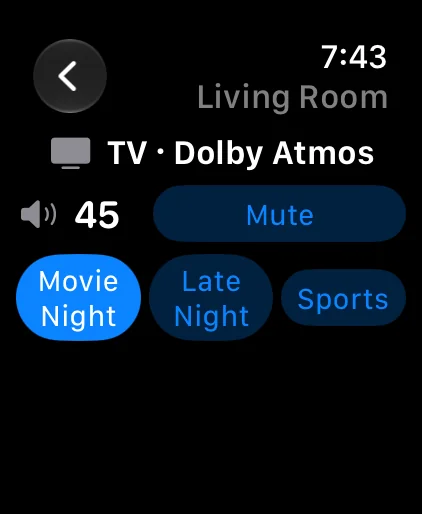
A TV room on the Apple Watch: Living Room, a TV icon with TV · Dolby Atmos, volume 45 with a Mute button, and three presets Movie Night, Late Night and Sports with Movie Night lit.
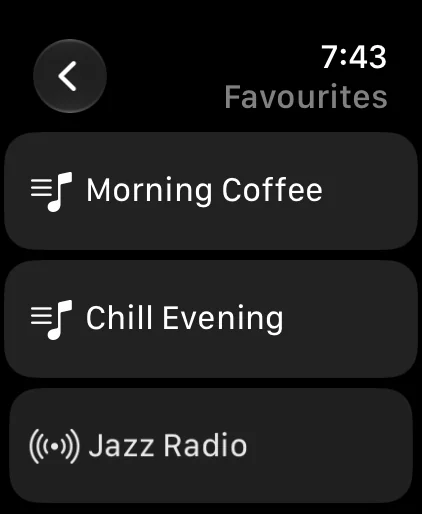
The Favourites list on the Apple Watch: Morning Coffee and Chill Evening with a playlist icon, and Jazz Radio with a radio icon.

On your wrist: the Apple Watch app

Open Somos on the phone once and your rooms appear on the Watch, in the same order as your bottom bar. Tap a room to see what is playing — the TV input and its audio format, or the song and its cover — then turn the Digital Crown for volume; the Watch talks to the speaker directly over your home Wi-Fi.
  • Rooms come from the phone; the Watch keeps them, even when the phone is out of reach
  • Play / pause and next on a music room, with the cover, title and artist; a TV room shows the format instead — Dolby Atmos here
  • The Crown is the volume dial — the number on screen follows it — with Mute beside it
  • The room's three presets from the wrist: TV presets on a TV room, music presets on a music room, the loaded one lit — Party Mix in the Kitchen, Movie Night in the Living Room
  • A Favourites button on a music room lists your favorites — playlists and radio stations — and a tap starts one
The Apple Watch app, step by step
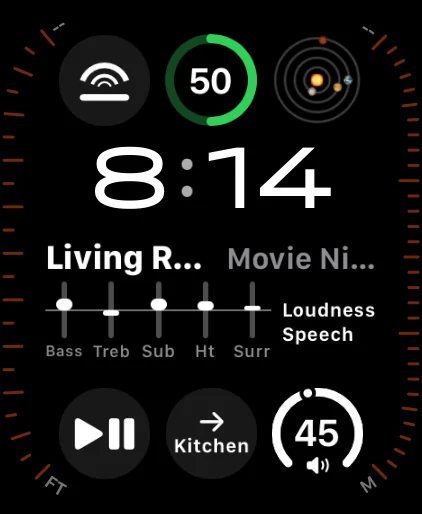
The Modular Ultra watch face with Somos complications: the Somos icon at the top left, the time 8:14, Living Room and Movie Night above EQ bars for Bass, Treble, Sub, Height and Surround with Loudness and Speech across the middle, then Play/Pause, Next Room reading Kitchen, and a Room dial at volume 45 along the bottom.
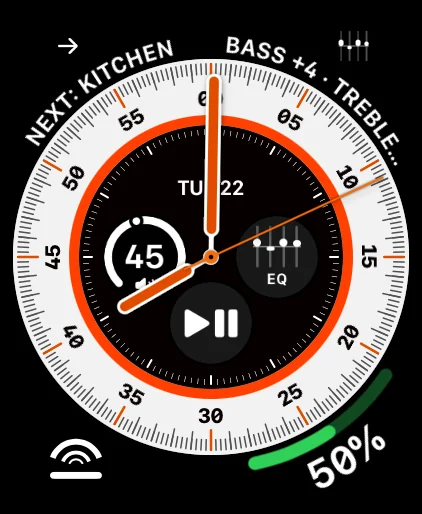
The Wayfinder watch face with Somos complications: Next: Kitchen and Bass +4 · Treble in the top corners, a Room dial at volume 45, EQ and Play/Pause inside the dial, and the Somos icon at the bottom left.
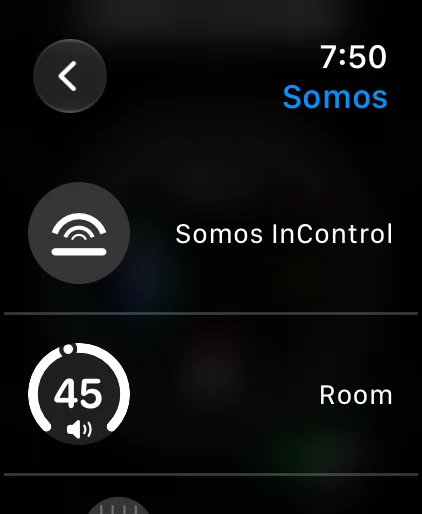
The complication picker on the Apple Watch under Somos: the Somos InControl icon and the Room complication, a ring at volume 45.
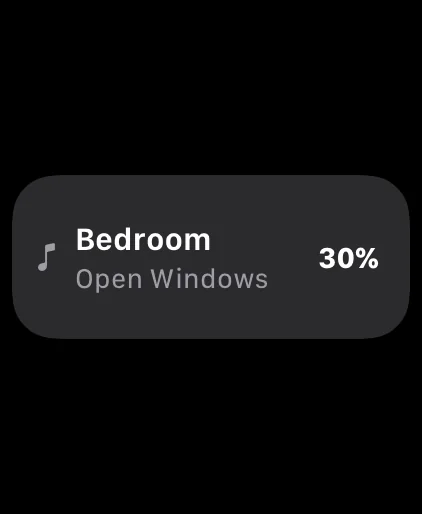
The Smart Stack card on a plain black background: a music note, Bedroom, Open Windows and 30%.

On your watch face: complications

Somos has five complications for your watch face: Icon, Room, EQ, Play/Pause and Next Room. Add them in the face editor under Somos — the Modular Ultra face in the first frame carries all five, with the EQ across the middle.

  • With Live Activity on, the phone's card also sits in the Watch's Smart Stack — room, what is playing and the volume at a glance, as in the last frame; tap it and the Watch app opens on that room

What's coming — and what just shipped

Music services — sign in to Amazon Music, Pandora, Spotify, iHeartRadio and Bandcamp right from the Music sheet, plus Apple Music (linked in the Sonos app) — are live in the beta now. Your own music server is next.

What works with what

Somos InControl works with Sonos® speakers that support local control — S1 and S2 systems, and more than one system at a time. If a speaker shows in the official app on the same Wi-Fi, it shows here. Every room gets volume, mute, bass, treble, loudness, presets, Trueplay, Status Light, Touch Controls and the Music sheet; the room's hardware adds the rest.

Room typeAdditional controls
Soundbar roomTV / Music source, audio-format badge, Night Sound, Speech Boost (a five-step slider on the Arc Ultra), height on height-capable bars, surround level and on/off, Group Audio Delay, Home Theater Setup
Stereo pairBalance slider, separate-pair option; a music room — its presets and EQ are on the Music sheet
Any room with a bonded SubSubwoofer level and on/off; Sub phase (Normal / Reversed, set by Trueplay while Trueplay is on); crossover (50–110 Hz) wherever the speaker reports one. A Sub never turns a music room into a TV room
Portable (Move, Roam)Battery level in the status line

Which Sonos speakers, and what each one gets

Every model below also gets the basics from the table above — volume, bass, treble, loudness, presets, Trueplay, Status Light, Touch Controls and Music. This is what's added on top, model by model, and which Sonos system each one runs on.

SpeakerTypeRuns onWhat Somos adds
PlaybarSoundbarS1 + S2TV / Music source, audio-format badge, Night Sound, Speech Boost, fronts / surrounds / Sub bonding
PlaybaseSoundbarS1 + S2TV / Music source, audio-format badge, Night Sound, Speech Boost, fronts / surrounds / Sub bonding
Beam (Gen 1)SoundbarS1 + S2TV / Music source, audio-format badge, Night Sound, Speech Boost, fronts / surrounds / Sub bonding
Beam (Gen 2)SoundbarS2 onlyTV / Music source, audio-format badge, Night Sound, Speech Boost, height level, fronts / surrounds / Sub bonding
Beam UltraSoundbarS2 onlyTV / Music source, audio-format badge, Night Sound, a five-step Speech Boost slider, height level, fronts / surrounds / Sub bonding
ArcSoundbarS2 onlyTV / Music source, audio-format badge, Night Sound, Speech Boost, height level, fronts / surrounds / Sub bonding
Arc UltraSoundbarS2 onlyTV / Music source, audio-format badge, Night Sound, a five-step Speech Boost slider, height level, fronts / surrounds / Sub bonding, Sub crossover slider
RaySoundbarS2 onlyTV / Music source, audio-format badge, Night Sound, Speech Boost, fronts / surrounds / Sub bonding
One (Gen 1 & 2)SpeakerS1 + S2Balance, when stereo-paired
One SLSpeakerS2 onlyBalance, when stereo-paired
Play:1SpeakerS1 + S2Balance, when stereo-paired
Play:3SpeakerS1 + S2Balance, when stereo-paired
Play:5 (Gen 1)SpeakerS1 onlyBalance, when stereo-paired
Play:5 (Gen 2)SpeakerS1 + S2Balance, when stereo-paired
FiveSpeakerS2 onlyBalance, when stereo-paired
Era 100 (incl. Era 100 SL)SpeakerS2 onlyBalance, when stereo-paired
Era 300SpeakerS2 onlyBalance, when stereo-paired; unlocks the Height slider when bonded as a soundbar's surround
SYMFONISK BookshelfSpeakerS1 + S2Balance, when stereo-paired
SYMFONISK Bookshelf (Gen 2)SpeakerS2 onlyBalance, when stereo-paired
MovePortableS1 + S2Battery level in the status line
Move 2PortableS2 onlyBattery level in the status line
Roam (incl. Roam SL, Roam 2)PortableS2 onlyBattery level in the status line
AmpAmpS1 + S2Sub crossover slider, when a Sub is bonded and the speaker allows it
ConnectAmpS1 + S2—
Connect:AmpAmpS1 + S2—
PortAmpS1 + S2—
Sub (incl. Sub Gen 2)SubS1 + S2Bonds into the paired room's Sub level, on/off and Sub phase (and crossover, where offered) — no page of its own
Sub (Gen 4)SubS2 onlyBonds into the paired room's Sub level, on/off and Sub phase (and crossover, where offered) — no page of its own
Sub MiniSubS2 onlyBonds into the paired room's Sub level, on/off and Sub phase (and crossover, where offered) — no page of its own

Full list in the manual →